
 العربية
⬜ Point of Sale Screen in AurPOS
The Point of Sale (POS) screen in the AurPOS system offers a simple and flexible experience for handling direct sales to customers, whether cash, credit, or service-based. In this article, we’ll explain everything related to the POS screen, broken down into three main sections:
1️⃣ Adding a POS Invoice
2️⃣ POS Sales List
3️⃣ POS Interface – Interactions and Settings Explained
✅ 1. Adding a POS Invoice
To add a direct sales invoice from the POS screen, follow these steps:
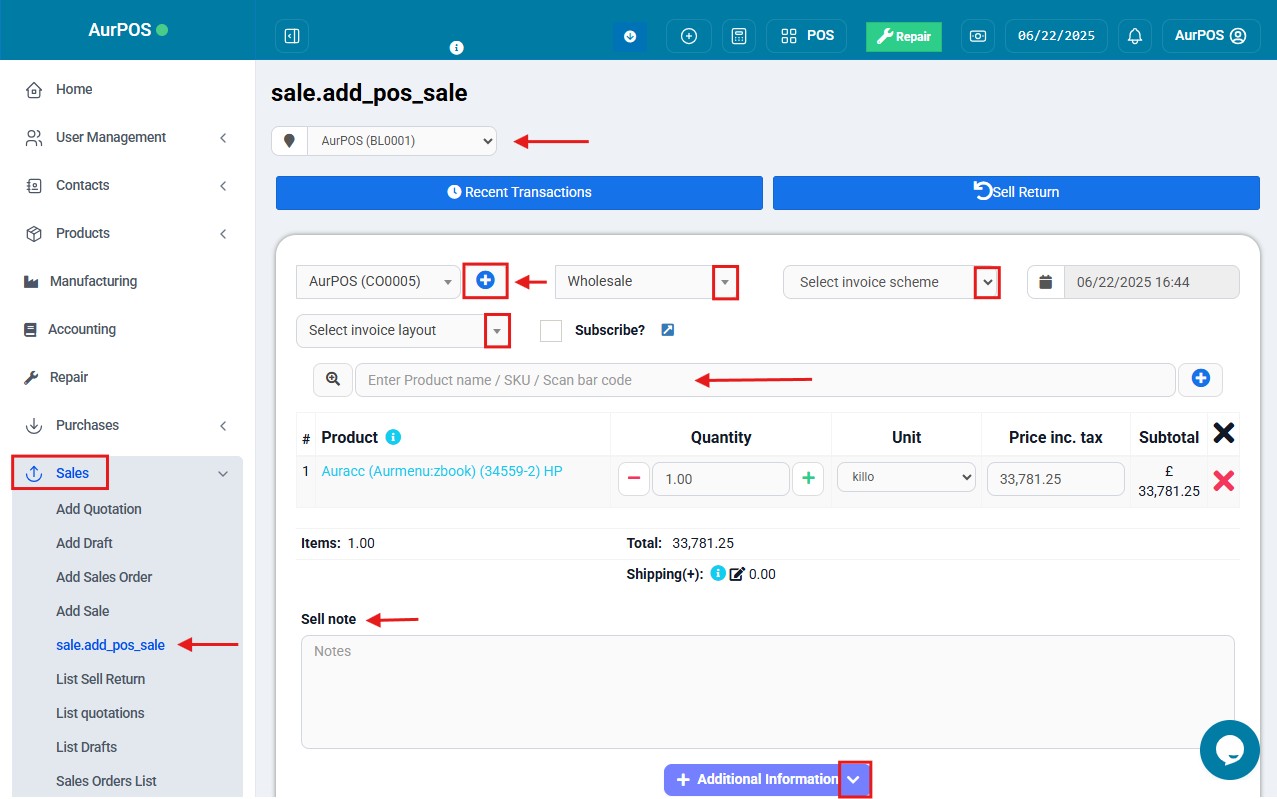
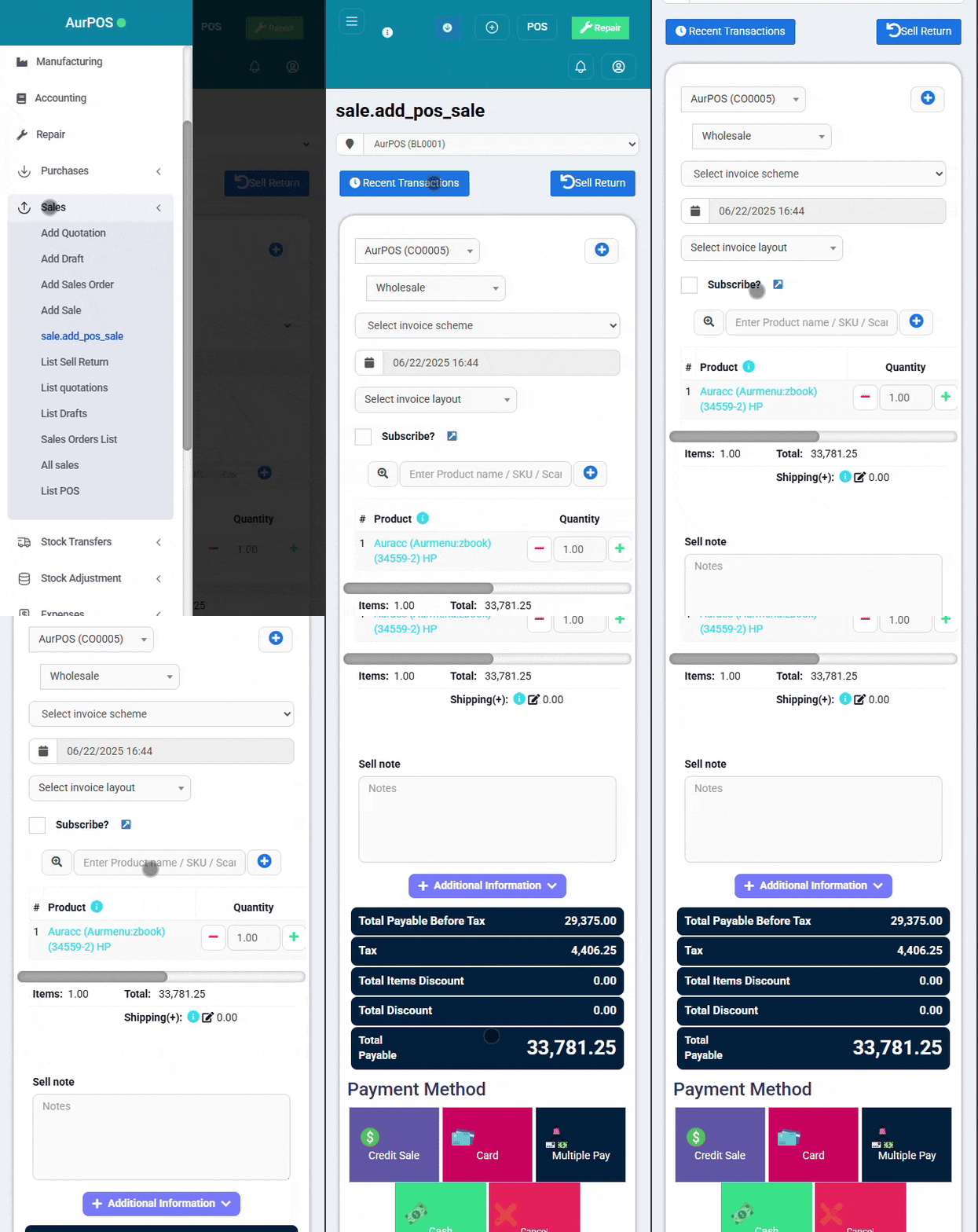
Go to: Sales → Add POS Invoice
Select the customer (by default, "Walk-in Customer" appears). You can:
-
Search for a customer by name, phone number, or ID.
-
Or click the “➕” icon to register a new customer.
Search for a product using:
-
Typing the product name
-
Or scanning the barcode
If multiple matching products exist, a selection list will appear.
Once the product is added to the sales basket, you can modify:
-
Product price
-
Tax
-
Discount
-
Batch number
-
Expiry date (if enabled in settings)
To complete the sale:
-
Click "Finish"
-
Choose the payment method (Cash, Credit, Split Payment, Card)
-
Then click "Save"
You’ll be prompted to print the invoice directly after saving.
✳ Note: To ensure proper invoice printing, make sure your printer settings use default margins.
✅ 2. POS Sales List
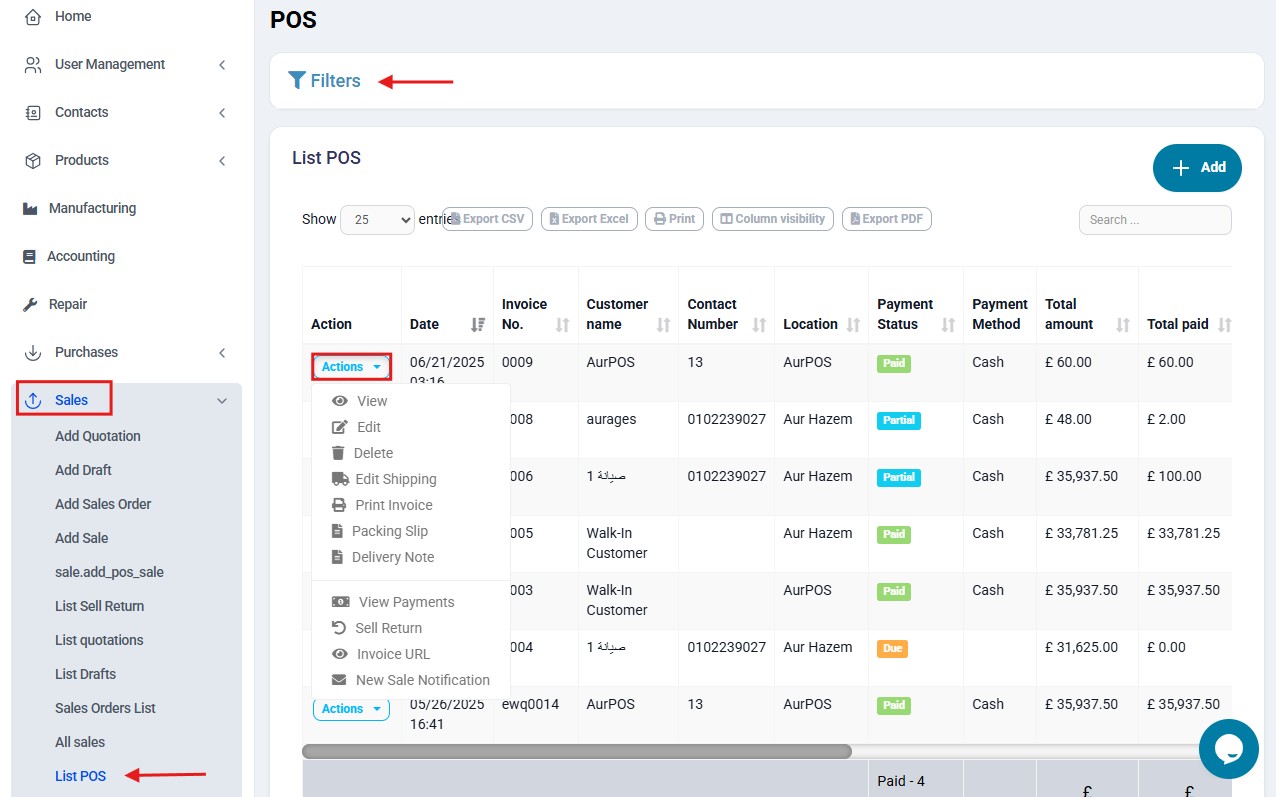
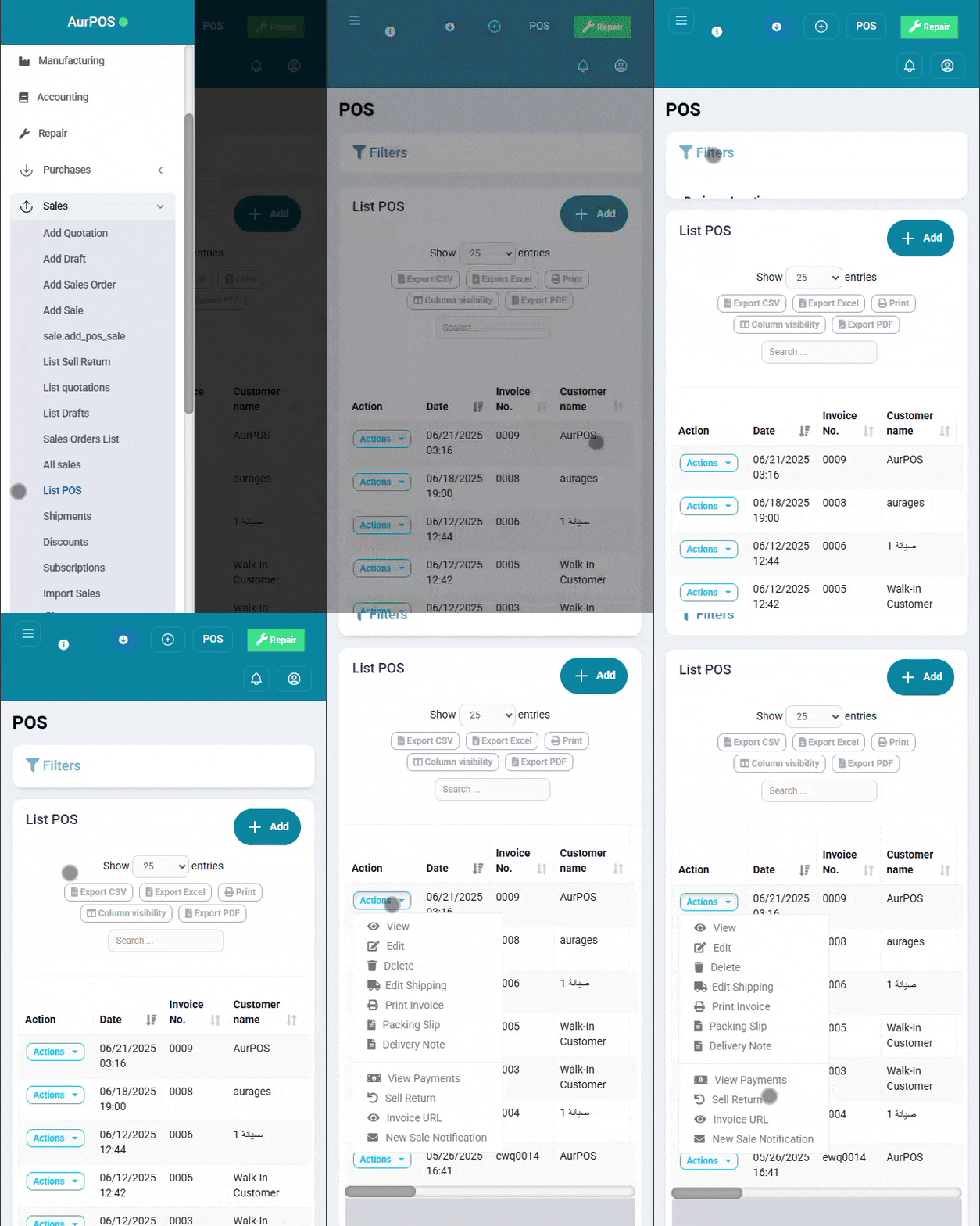
You can access issued invoices via:
Sales → List POS : to view all sales invoices from POS screen .
You may edit or modify any invoice as needed.
✅ 3. POS Interface – Interactions and Settings
➤ Quick Payment
The invoice is saved immediately using cash payment without opening the payment screen. Printing behavior depends on site settings.
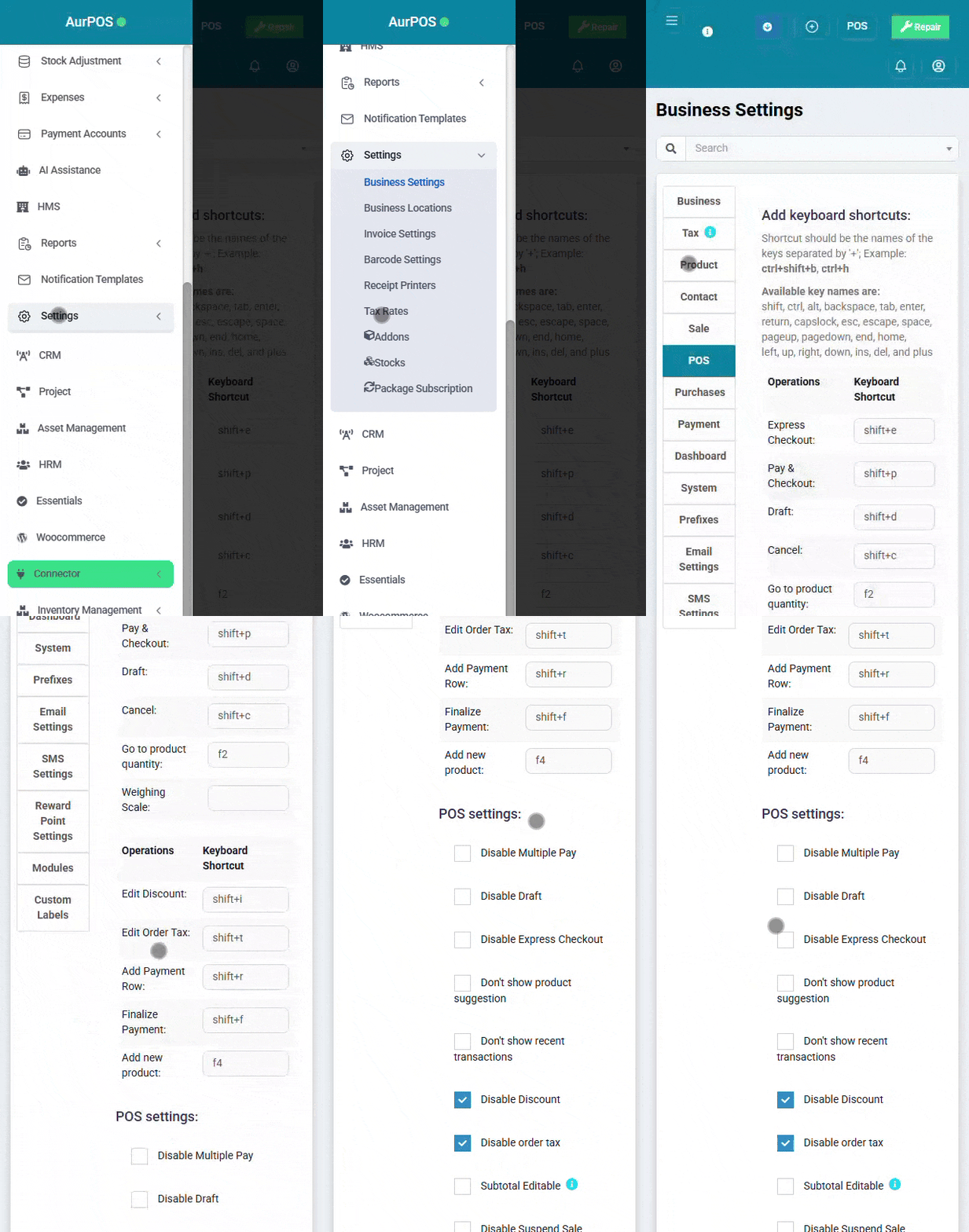
To disable this:
Go to Settings → Business Settings → POS → Disable Express Checkout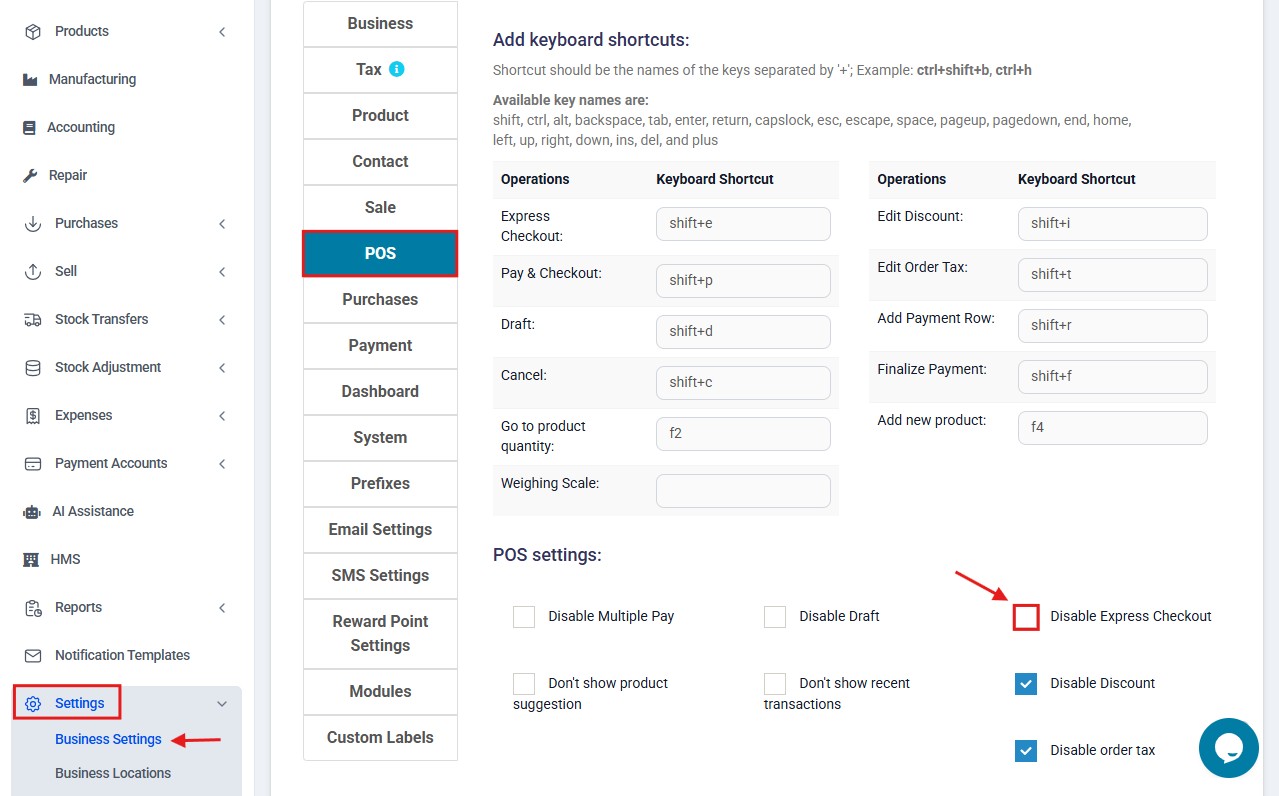
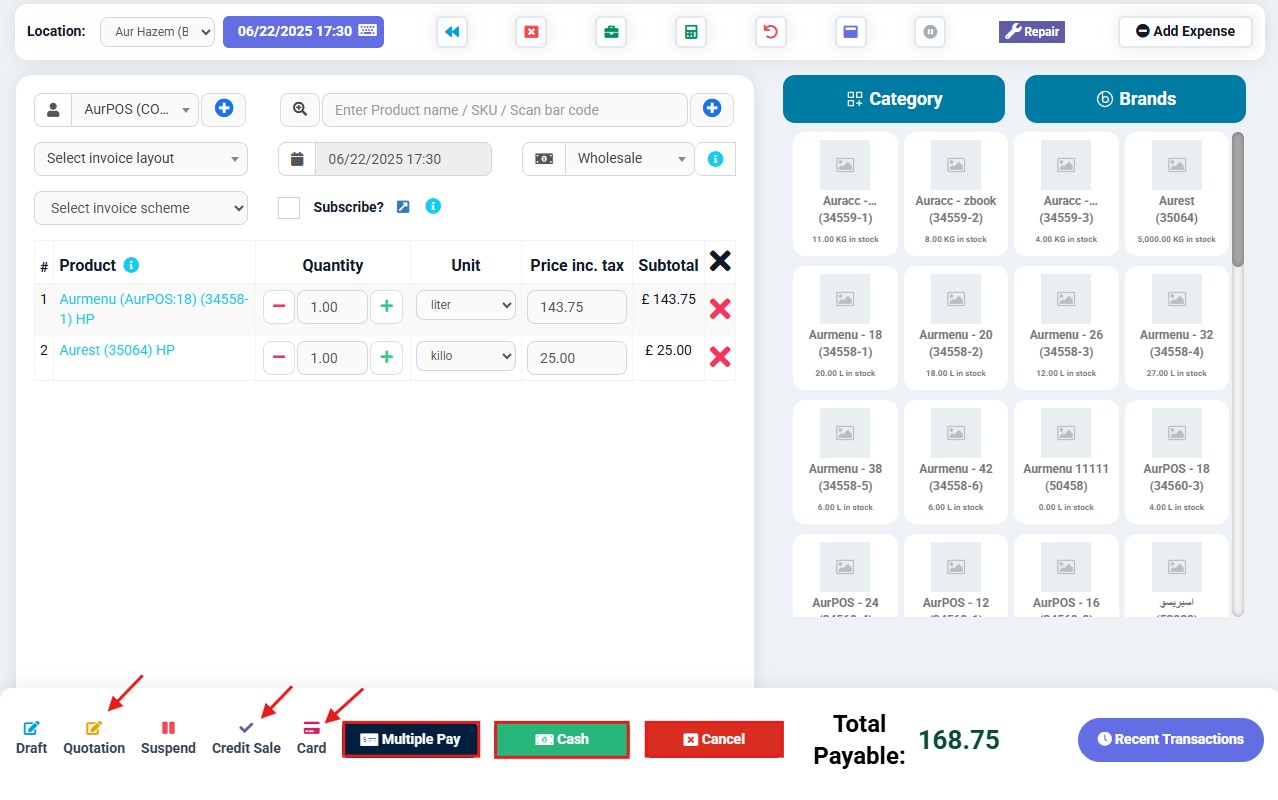
 ➤ 100% Credit Sales
To sell products on credit:
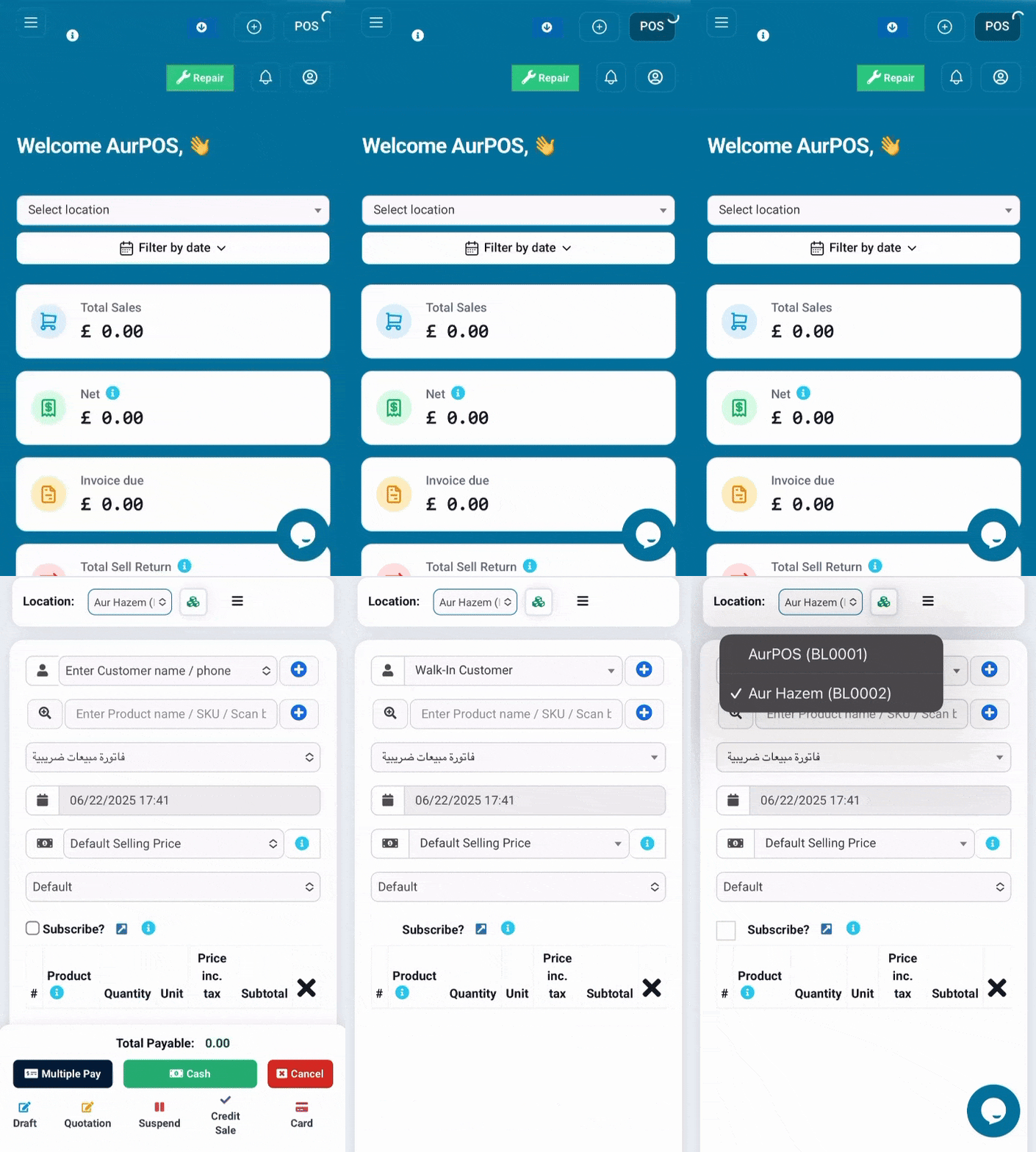
Click the “Credit Sale” button within the POS screen.
The sale will be recorded as a credit transaction for the customer.
➤ Partial Sales – Split Payment
If the customer pays part of the invoice:
-
Click on "Multiple Pay"
-
Choose the first payment method and enter the amount paid
-
Click Complete Payment
The remaining balance will automatically be recorded as credit.
Alternatively, select two payment methods (e.g., partial cash and card).
➤ Show Previous Sale Price
When selling the same product to the same customer again, the system displays the last sale price as a reference.
➤ Backdated Sales
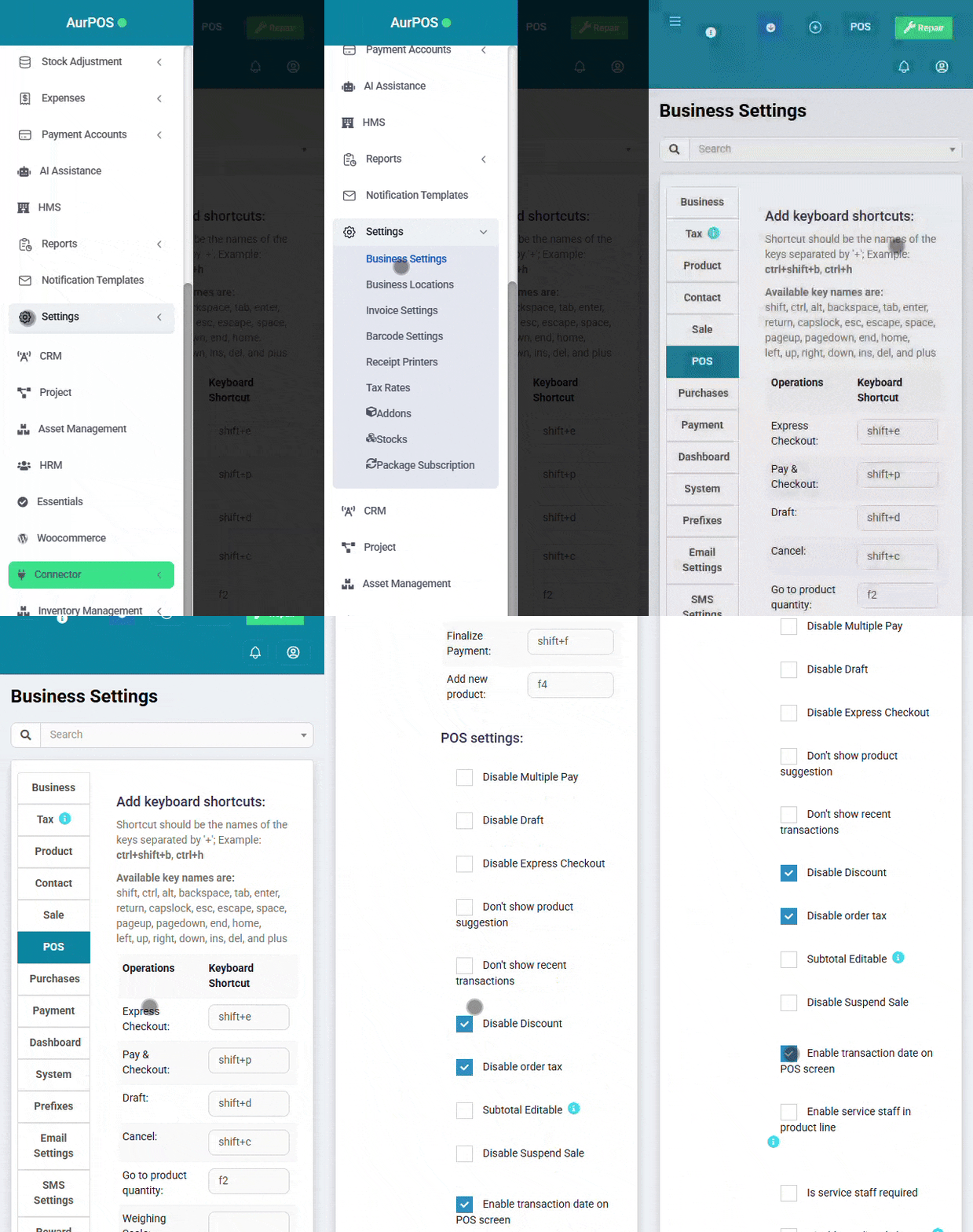
To enable setting past dates for sales:
Go to Business Settings → POS → Enable Transaction Date
Once enabled, you can select the date and time of the transaction during sale.
Also, in the sales screen, you can choose a past date without needing extra settings.

➤ Selling Services (Intangible Items)
To add a service item, disable Stock Management within the product’s settings.
Enter the service name and its price.
If you want to include a detailed description (e.g., for repairs), enable the Description / IMEI / Serial Number option.
To print the description on the invoice:
Go to Settings → Invoice Settings → Invoice Layouts
Enable "Show Sale Description"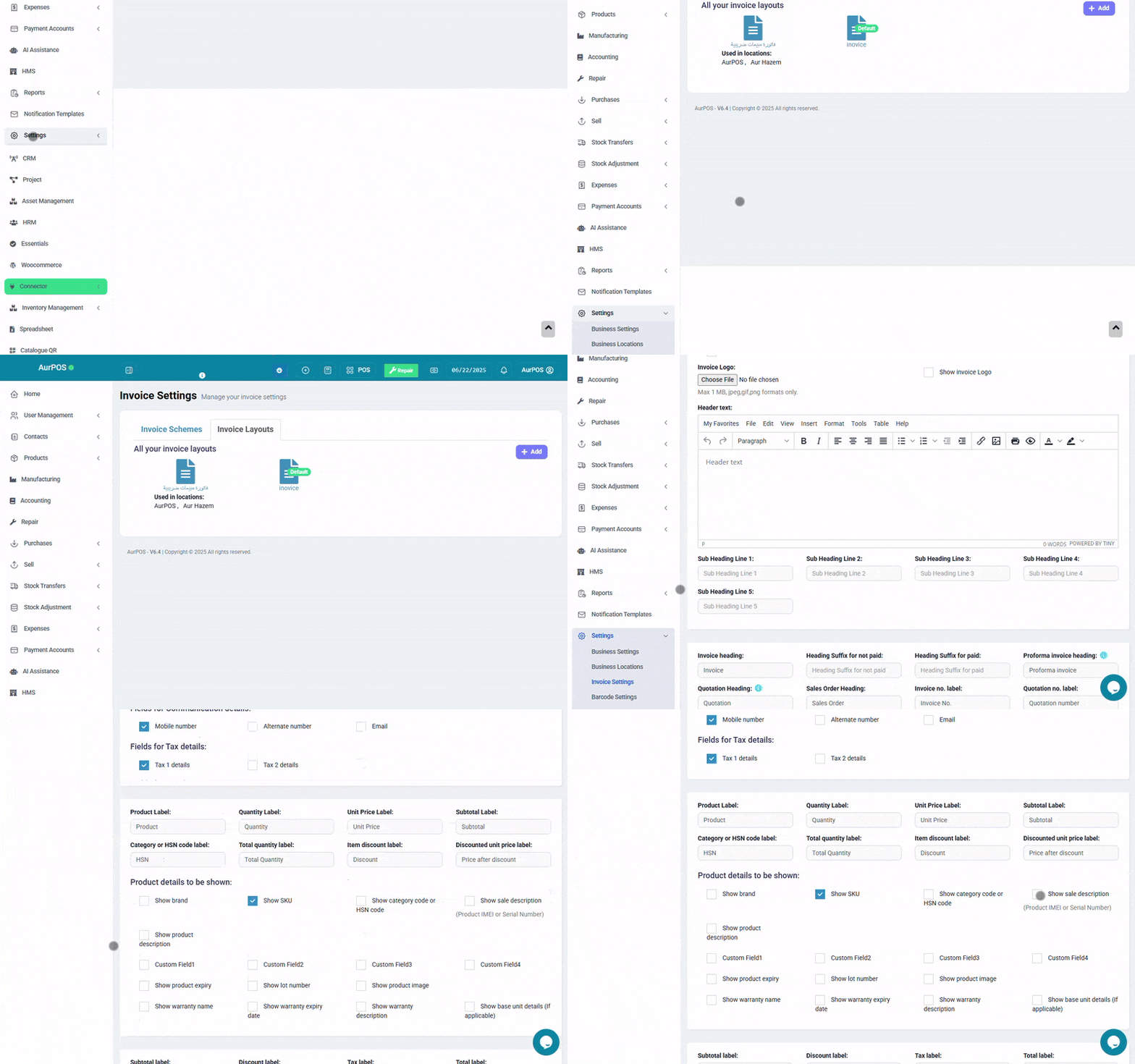

➤ Featured Products
To add popular items to the POS screen:
Go to Settings → Business locations
Select the location ID and click Edit.
Choose the featured products you want to display in the POS interface.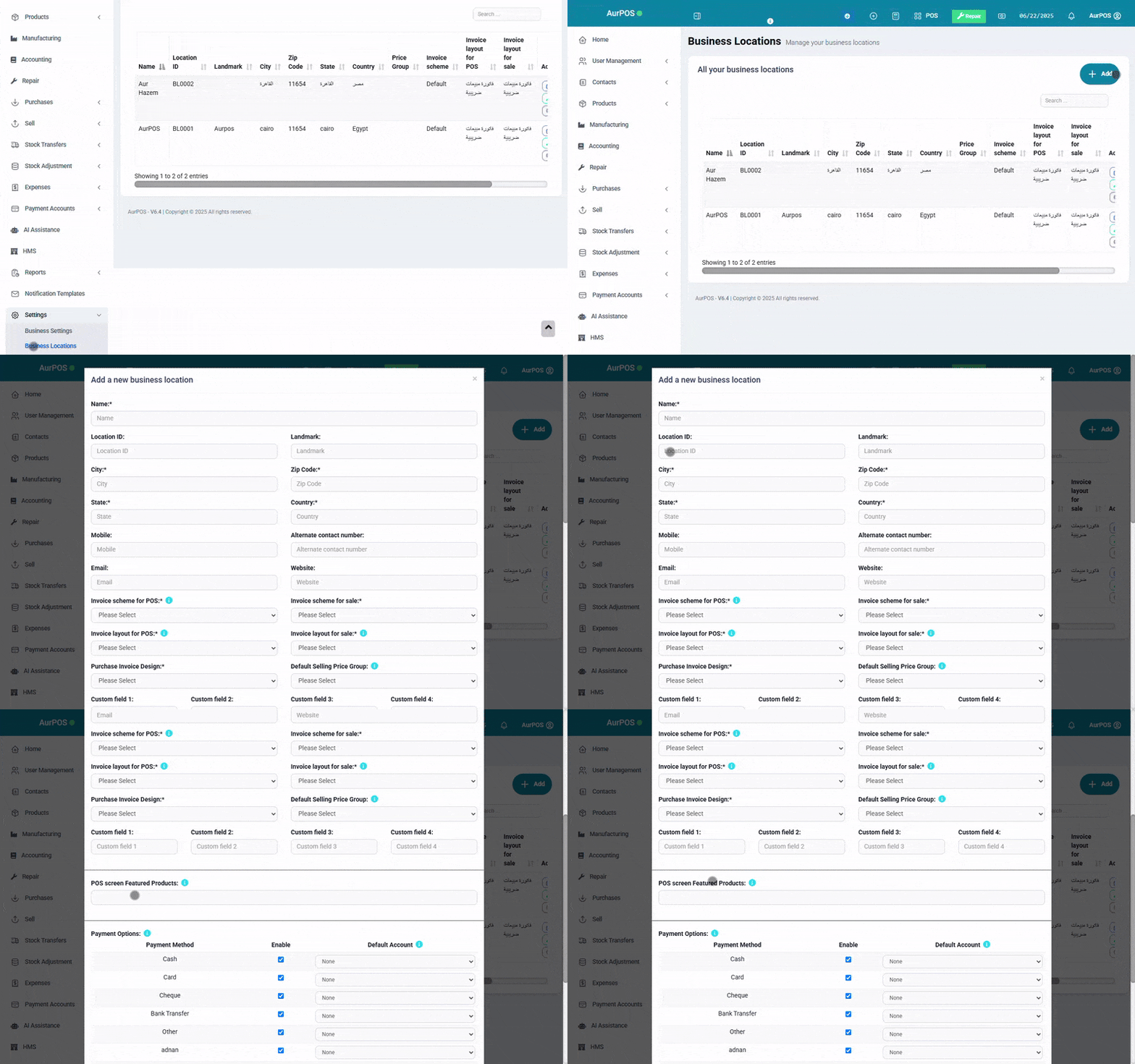
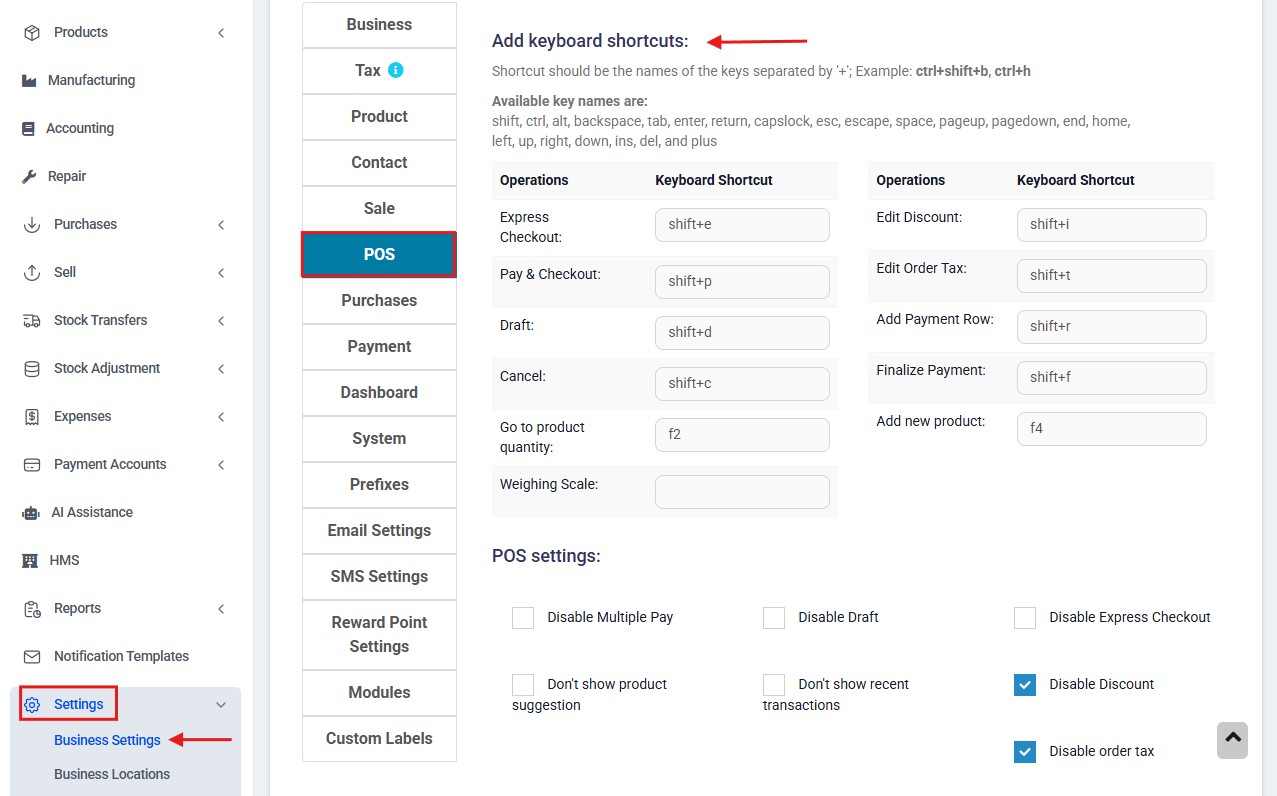
➤ Keyboard Shortcuts
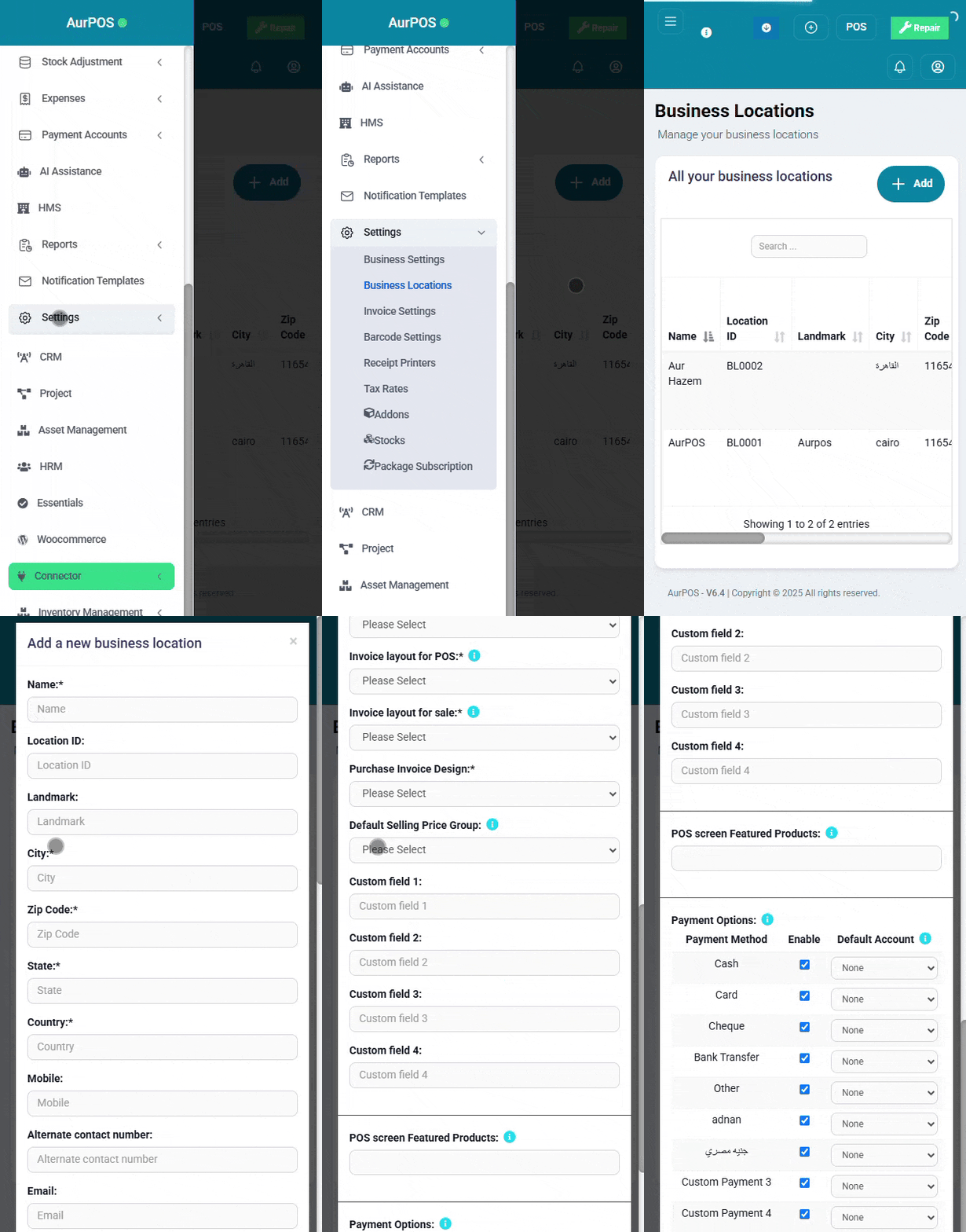
AurPOS offers customizable keyboard shortcuts for faster operations within the POS screen.
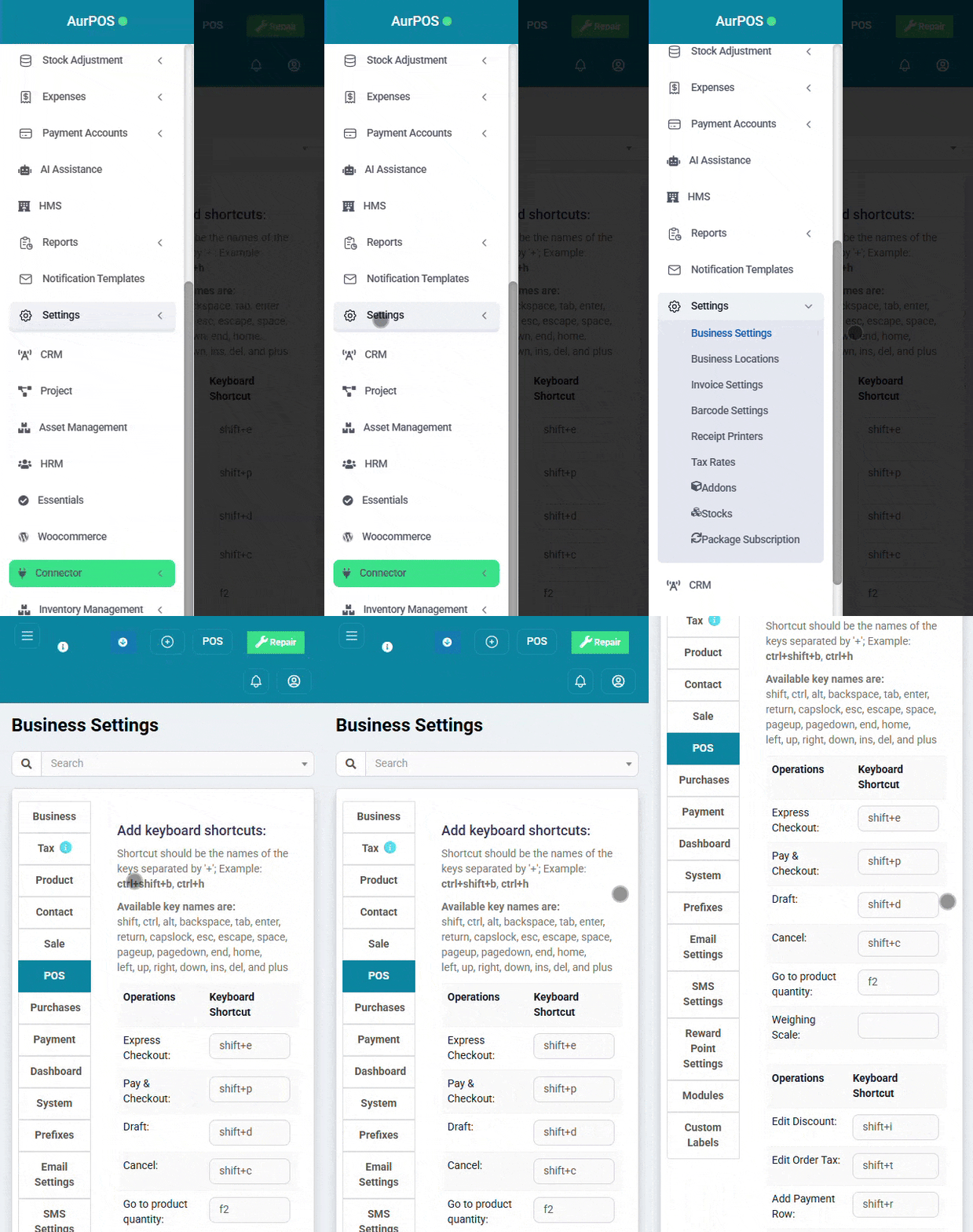
To adjust them:
Go to Settings → Business Settings → POS
You can assign keys as you prefer, but avoid conflicts with browser shortcuts.
➤ Show Product Unit Price on Suggestion
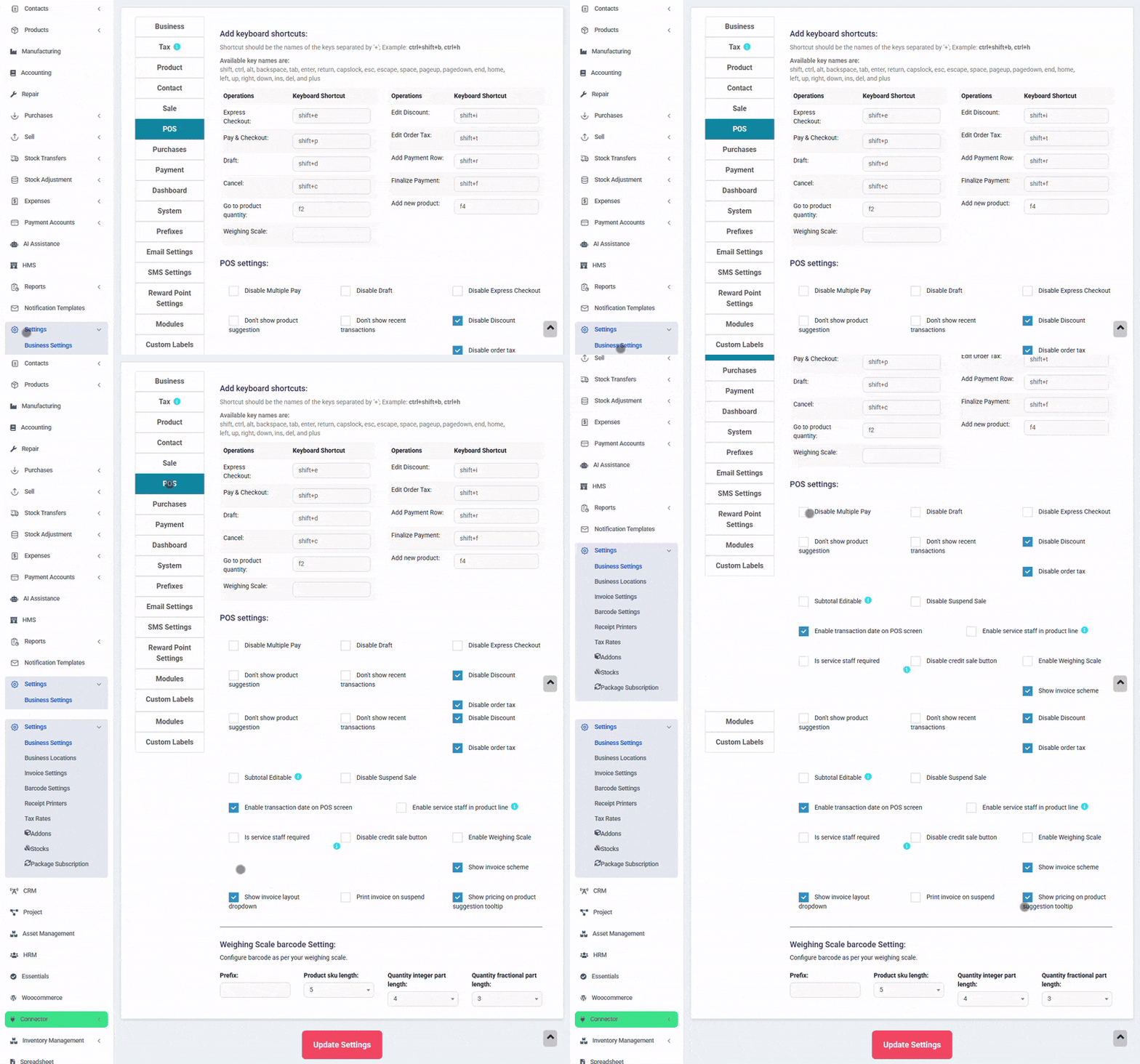
To display unit price while searching for products:
Go to Business Settings → POS
Enable the "Show Pricing in Product Suggestions option".
The unit price will appear in the product search bar within the POS screen.

✨ Summary
The POS screen in AurPOS is a comprehensive tool that enables fast, flexible, and complete sales operations—whether cash, credit, or service-based. You can manage all sale details, invoices, drafts, Multiple Pay, and customize the sales experience to fit your business style with ease.